MS Word Formatting Skills for School Work
A well-written assignment can lose marks if it looks messy, and a tidy one is easier for a teacher to read and mark. Learning MS Word formatting skills school work needs is not about fancy decoration. It is about headings that show the structure, paragraphs that are easy to follow, tables that line up, and pages that print the way you expect. In this guide you will practise the handful of formatting skills that cover almost every school assignment, from a one-page essay to a small report with a table.
Why Neat Formatting Matters
Formatting is the way your document looks: the size and style of the letters, the space between lines, the headings, and the edges of the page. Good formatting does not hide weak writing, but it does give good writing a fair chance. When a teacher opens a document with a clear title, tidy headings, and even margins, the work is easy to follow, and the reader can focus on what you wrote instead of struggling to read it.
Think of formatting as manners for your document. Just as neat handwriting shows respect for the reader, a neatly formatted document shows that you checked your work. You do not need many tricks. A few consistent choices, used the same way through the whole document, look far more professional than a different style on every page.
Headings and Paragraph Formatting
Start every assignment with a title, then break the writing into sections with headings. Use the built-in heading styles for headings instead of just making the text bigger and bold. Heading styles keep every heading the same size and style, and they let Word build a table of contents for longer documents automatically. A reader who glances at your headings should be able to tell what the assignment is about.
For the body text, keep one font and one size throughout, usually a plain font at a readable size, with comfortable line spacing. Left-align most school writing, because fully justified text can leave uneven gaps between words. Keep paragraphs short, one idea each, and leave the same small space after every paragraph. Consistency is the whole secret: pick sensible settings once and use them everywhere.
- Title at the top, then a heading for each section of the assignment.
- Use built-in heading styles, not manual size and bold changes.
- One font and one size for all body text, all the way through.
- Short paragraphs, one idea each, with even spacing after each one.
Tables That Stay Tidy
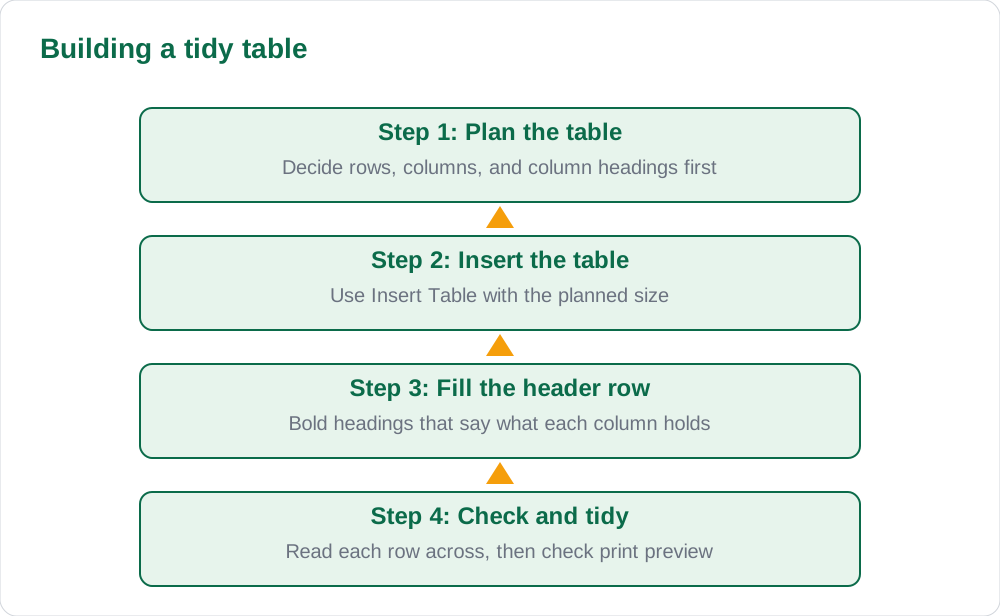
Tables are the best way to present information that comes in rows and columns, such as a timetable, a list of results, or a comparison. Build a table with the Insert Table command, and decide the number of rows and columns before you start typing. Give the first row special treatment as a header row, with bold text, so a reader can see at a glance what each column means.
Keep tables simple. Do not squeeze a wide table onto a narrow page, and do not merge cells unless you have a real reason. If a table is too wide, shorten the headings or turn the page sideways for that one page. After you fill a table, read it back as a reader: can you follow each row from left to right without getting lost? If not, simplify it.
Page Setup Before You Print
Page setup decides how your document looks on paper: the page size, the margins, and whether the page stands upright or sideways. For school work, use the standard page size your teacher expects, with normal margins on all sides. Always look at the print preview before you print. The preview shows exactly what the paper will look like, and it is much cheaper to fix a problem on screen than after printing.
Check three things in the preview. First, that no heading sits alone at the bottom of a page with its paragraph on the next page. Second, that no table is cut off at the right edge. Third, that the last page is not almost empty with one lonely line. Small fixes, such as shortening a sentence or moving a heading, solve all three problems. Add page numbers to any assignment longer than one page, so loose pages can be put back in order.
Checking Your Work Before Submission
Before you hand in any document, run a final check in this order: spelling, formatting, then printing. Run the spell checker, but do not trust it blindly, because it cannot tell when you used the wrong word that happens to be spelled correctly. Then read the whole document once from the top, looking only at headings, spacing, and tables. Finally, look at the print preview one more time.
Save your work with a clear file name that includes your name, the subject, and the topic, and save it in the folder your teacher named. If you must send the file by message or email, check that you attached the final version, not an older draft. Many lost marks come from sending the wrong file. For a presentation version of the same work, see our guide to designing clear presentation slides for class.
- Spell check first, then read once for formatting, then preview for printing.
- Check that every heading matches the section under it.
- Save with a clear name: name, subject, and topic.
- Attach the final version, not an older draft, when sending your work.
AI Help: Muse AI
Muse AI is Meta's personal AI assistant, and it can help with turning a rough list of points into a clean heading outline for an assignment. Muse AI does not give official Sindh Textbook Board answers — always verify against your Sindh Textbook Board book and your teacher.
Join Muse with invite code LTGSWD — in the Muse app, go to Settings > Redeem token and enter the code.
Disclosure: LTGSWD is the author's Muse invite code.
5 key points you must know
- Formatting shows respect for the reader and makes marking easier.
- Use built-in heading styles for consistent headings.
- Keep one font and size for body text through the whole document.
- Plan tables before inserting them, and give them a bold header row.
- Always check print preview before printing or sending your work.
Frequently asked questions
Should I use a fancy font for my assignment?
No. A plain, readable font looks more professional and is easier to mark. Save decorative fonts for posters and title pages where your teacher allows them.
Why do my tables print cut off at the edge?
The table is wider than the printable page. Shorten the column headings, reduce the font size inside the table slightly, or change that page to sideways orientation, then check print preview.
How do I fix a heading alone at the bottom of a page?
Move the heading to the next page with the paragraph that follows it, or shorten the text above it. A heading should never sit alone at the bottom of a page.
Is spell check enough for checking my work?
No. Spell check misses words that are spelled correctly but used wrongly, and it cannot judge your meaning. Always read the document yourself before submitting it.
Solved notes — preview free
These guides work best with the solved exercises. Preview the solved notes free on this website — 119 solved notes for Classes 6–10 in Sindhi, Urdu, English and Arabic medium. Or browse the full solved notes catalogue for your class and medium. New solved notes are added regularly — check the catalogue for coming-soon books.